Skip to content

LM Studio
A large model runner with a visual interface.
Features
Screenshots
System Requirements
Minimum 16GB RAM. Reserve at least 100GB storage.
Windows 10/11: AMD GPU supported, but NVIDIA GPU recommended.
macOS 11+: M-series chips required.
Introduction
LM Studio is a powerful and easy-to-use desktop application mainly used to run and experience large language models on local devices.
- Features and Advantages:
- Local Operation: Different from the traditional way of invoking language models relying on cloud services, LM Studio focuses on local device operation. As long as the hardware configuration meets the requirements, such as common laptops and desktop computers, various large language models can be run smoothly. It gets rid of network restrictions and also avoids the privacy risk of data leakage to the cloud. It can be used even in a network-free environment.
- Wide Model Compatibility: It has excellent model adaptation capabilities and can be compatible with a large number of models from repositories such as Hugging Face, including the popular Qwen, Llama, the practical MPT, the StarCoder which is good at programming assistance, and many derivative variants. Users can accurately select suitable models according to specific work tasks, such as different needs like literary creation, code writing, and academic research.
- Hardware Collaborative Optimization: Supported by the underlying architecture of llama.cpp, for NVIDIA series GPUs, GPU offloading technology is used to disassemble the model into fine "subgraphs". According to the hardware computing power, the computing tasks are reasonably allocated to make the GPU and CPU perform their respective duties and work together, breaking through the limitations of video memory and significantly improving the computing speed. In terms of memory management, with the help of model quantization means, the memory occupancy is reduced on the premise of ensuring the stable output quality of the model, ensuring that even if the device memory is limited, large models can be smoothly loaded and run. LM Studio ships with an MLX engine for running on-device LLMs super efficiently on Apple Silicon Macs.
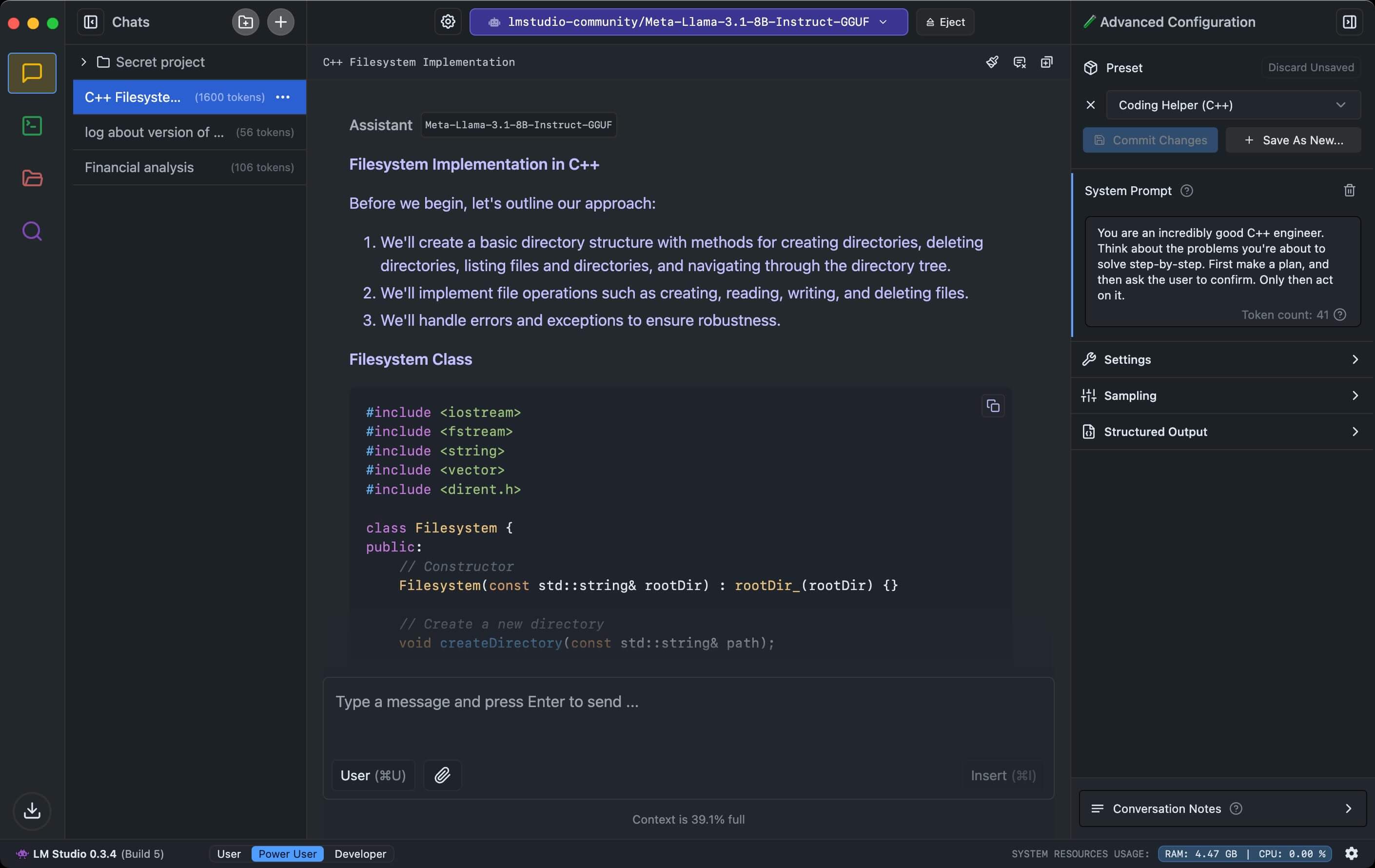
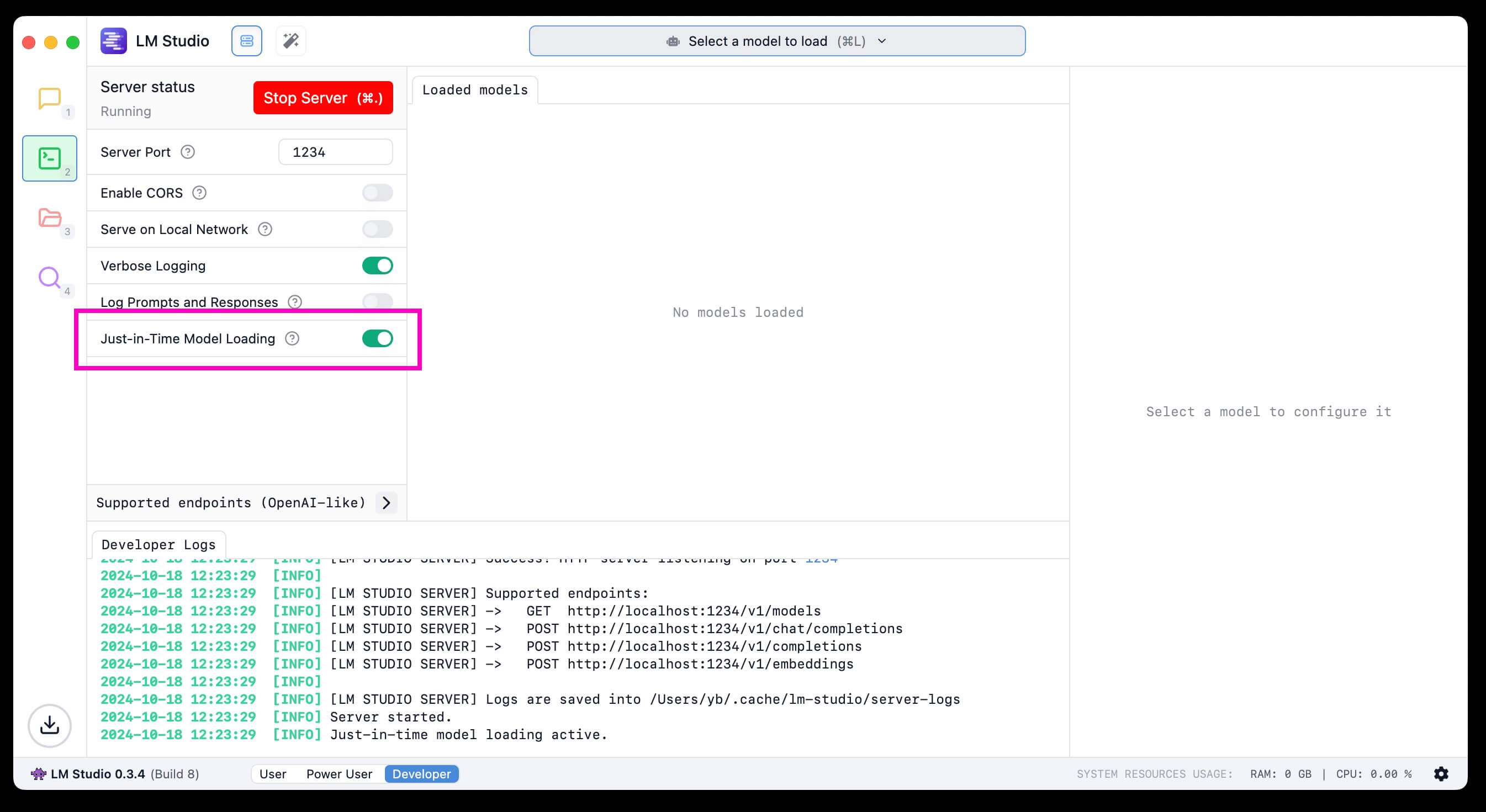
- Convenient Interaction Design: Its graphical operation interface adheres to the principle of simplicity and ease of use. Novices do not need to deal with complex command line operations. Through regular interactions such as mouse clicks, they can smoothly complete a series of processes on the interface, such as model download, fine parameter adjustment, and operation status monitoring. Especially, the built-in local server function compatible with OpenAI serves as a "bridge" to seamlessly connect the existing applications built based on the OpenAI API with the local models, greatly shortening the development and adaptation cycle.
- System Support: Supports Windows, macOS, and Linux platforms.
- Installation and Use:
- Installation: Please use LM Downloader to get it. You also can visit the official website of LM Studio (https://lmstudio.ai/), download the corresponding installation package according to your operating system category, and complete the installation according to the normal software installation steps. Set basic parameters such as the installation path as needed during the process.
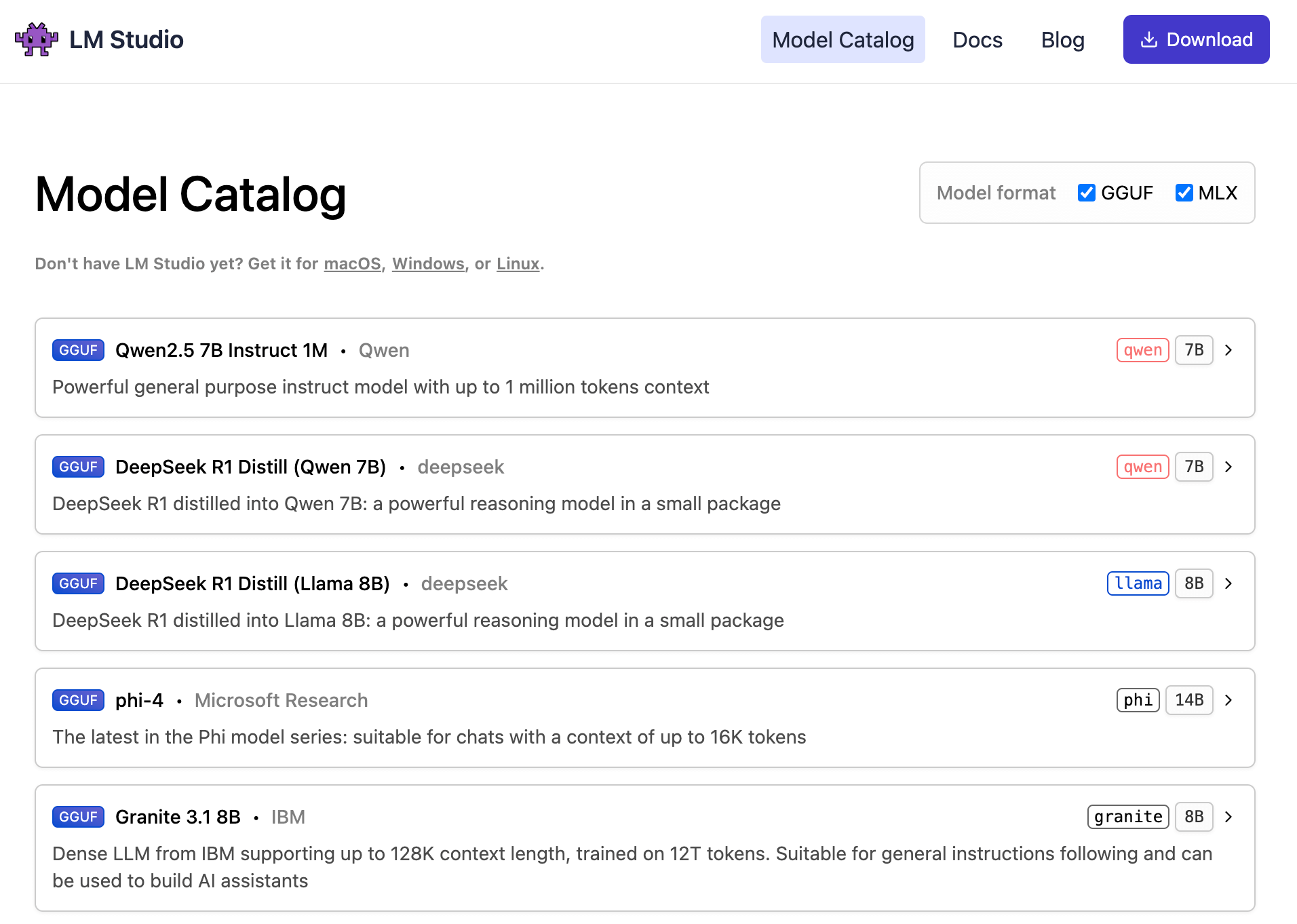
- Model Selection and Download: After starting the application, locate the "Model Library" section on the main interface and enter it. You can use the search box to enter keywords or filter your favorite models according to classification labels. After selecting the target model, click the "Download" button on the side, and the program will automatically pull the model file from the cloud and save it to the local specified directory.
- Local Operation and Interaction: If you plan to integrate with external applications developed based on the OpenAI API, switch to the "Local Server" tab, select the downloaded model from the drop-down menu, and click the "Start Server" button. After a successful start, external connection operations can be carried out. Return to the "Chat" or "Interaction" section on the main interface, enter instructions or questions in the input box, and click the "Send" button or press the Enter key. LM Studio drives the local model to calculate, and the output result will be displayed in the box below after a while. During the interaction, you can also use the parameter sliders on the sidebar to fine-tune parameters such as "temperature" and "repetition penalty" in real time to optimize the quality of the output text.
Homepagehttps://lmstudio.ai
LicenseMIT